
Today, we're releasing Screens 5.10, one of the biggest updates we've shipped in quite some time.
And we've been looking forward to this one!
Over the years, we've received countless requests for two particular features: the ability to resize a remote Mac's desktop to fit your screen, and audio transmission.
Well, we're happy to say that both are finally here!
Screens 5.10 introduces support for Apple's High Performance Screen Sharing technology, bringing dynamic desktop resizing, smoother video, remote audio, virtual displays, and improved privacy to compatible Macs.
And here's something else we think you'll love: there's no additional software to install on your remote Mac!
High Performance works with macOS's built-in Screen Sharing. Just enable Screen Sharing on an Apple silicon Mac running macOS 14 Sonoma or later, and you're all set.
No host apps, no drivers, no complicated setup. Just connect with Screens and enjoy!
But that's not all. We've also made significant improvements to rendering performance across all connections, added new ways to work with multiple displays on Mac and Apple Vision Pro, and polished quite a few things along the way.
Let's take a look.
Your Remote Desktop. A Perfect Fit.
If you've been using Screens for a while, you're probably familiar with the occasional frustration of connecting to a Mac whose desktop resolution doesn't quite match your device.
You end up zooming, panning, or dealing with a desktop that's either too large or too small.
Not anymore!
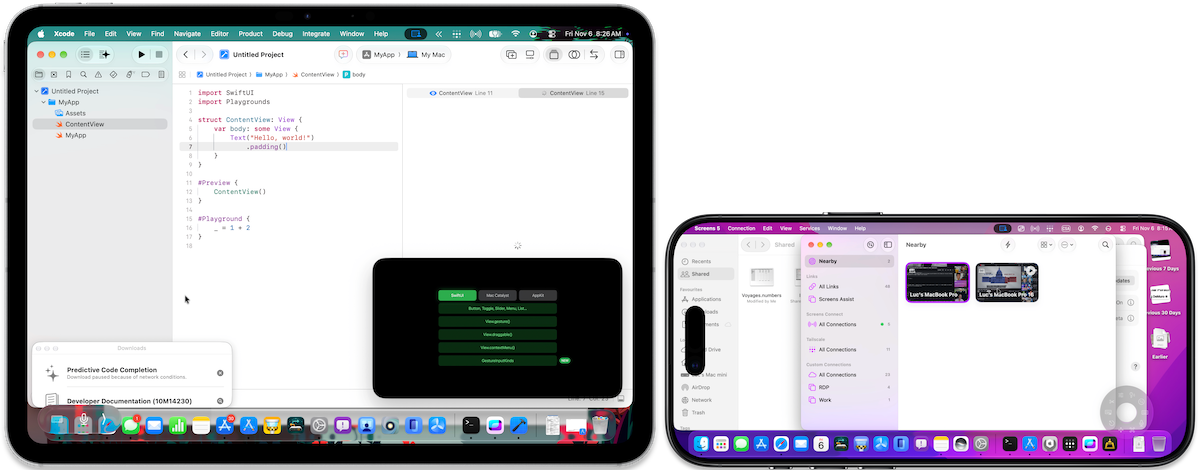
With High Performance, Screens dynamically adjusts the remote Mac's desktop resolution to fit your device's display or connection window, even when multitasking on iPad or iPhone Duo.
On iPhone and iPad, the desktop adapts to your screen, including when you rotate your device.
On Mac and Apple Vision Pro, simply resize your connection window, and the remote desktop adjusts accordingly.
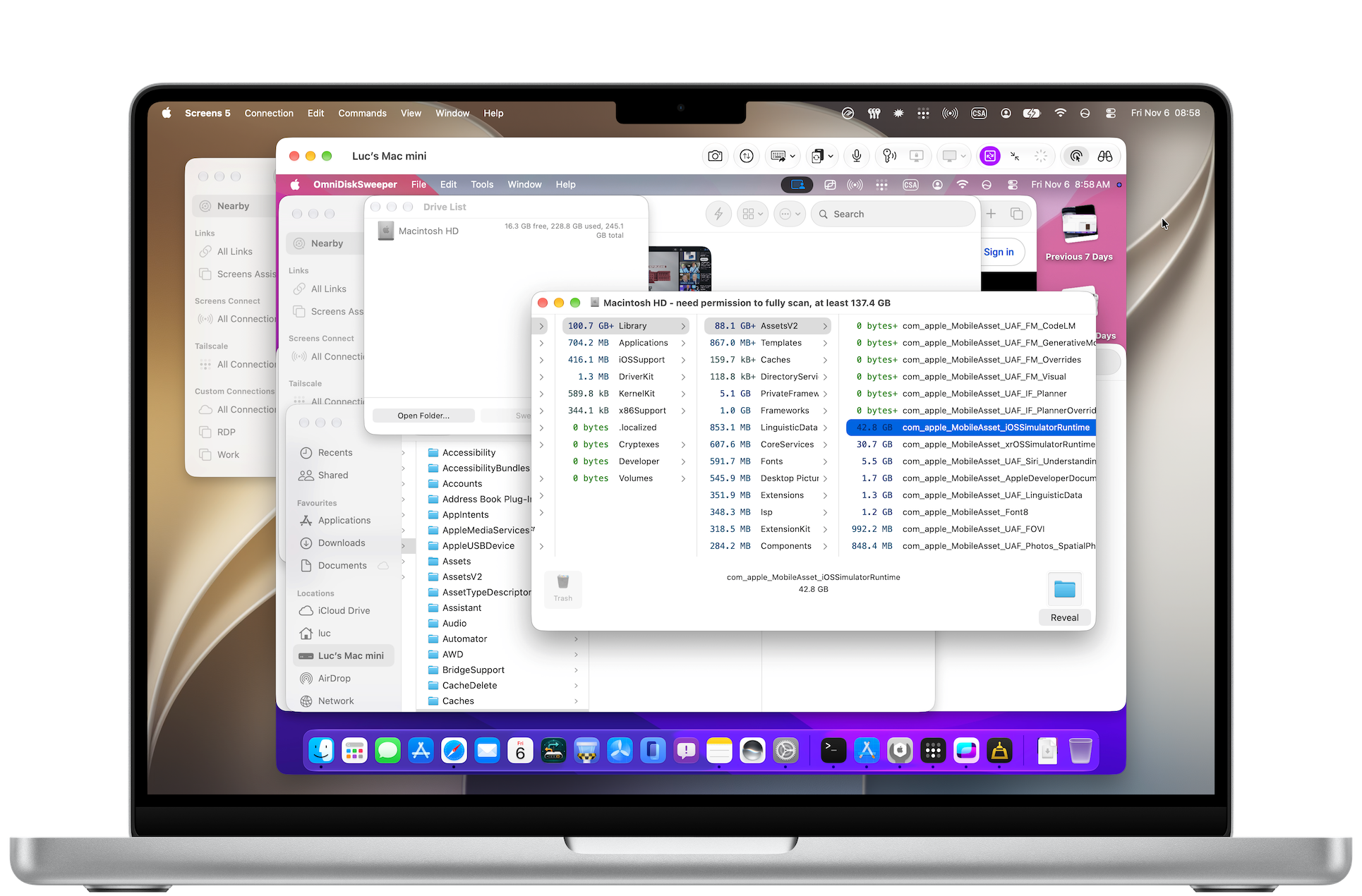
No more fiddling with resolutions. It just fits™.
Prefer a Fixed Resolution?
We've got you covered.
On iPhone, iPad, Mac, and Apple Vision Pro, you can also choose a fixed desktop resolution and specify your preferred width and height.
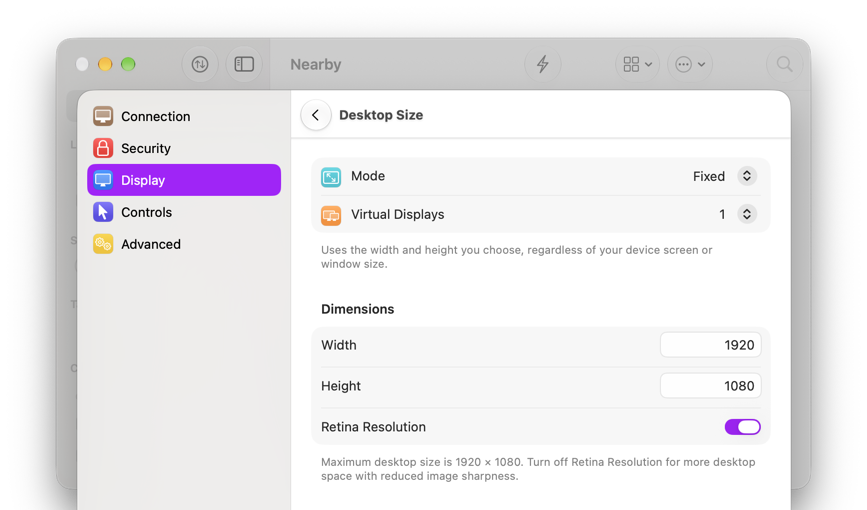
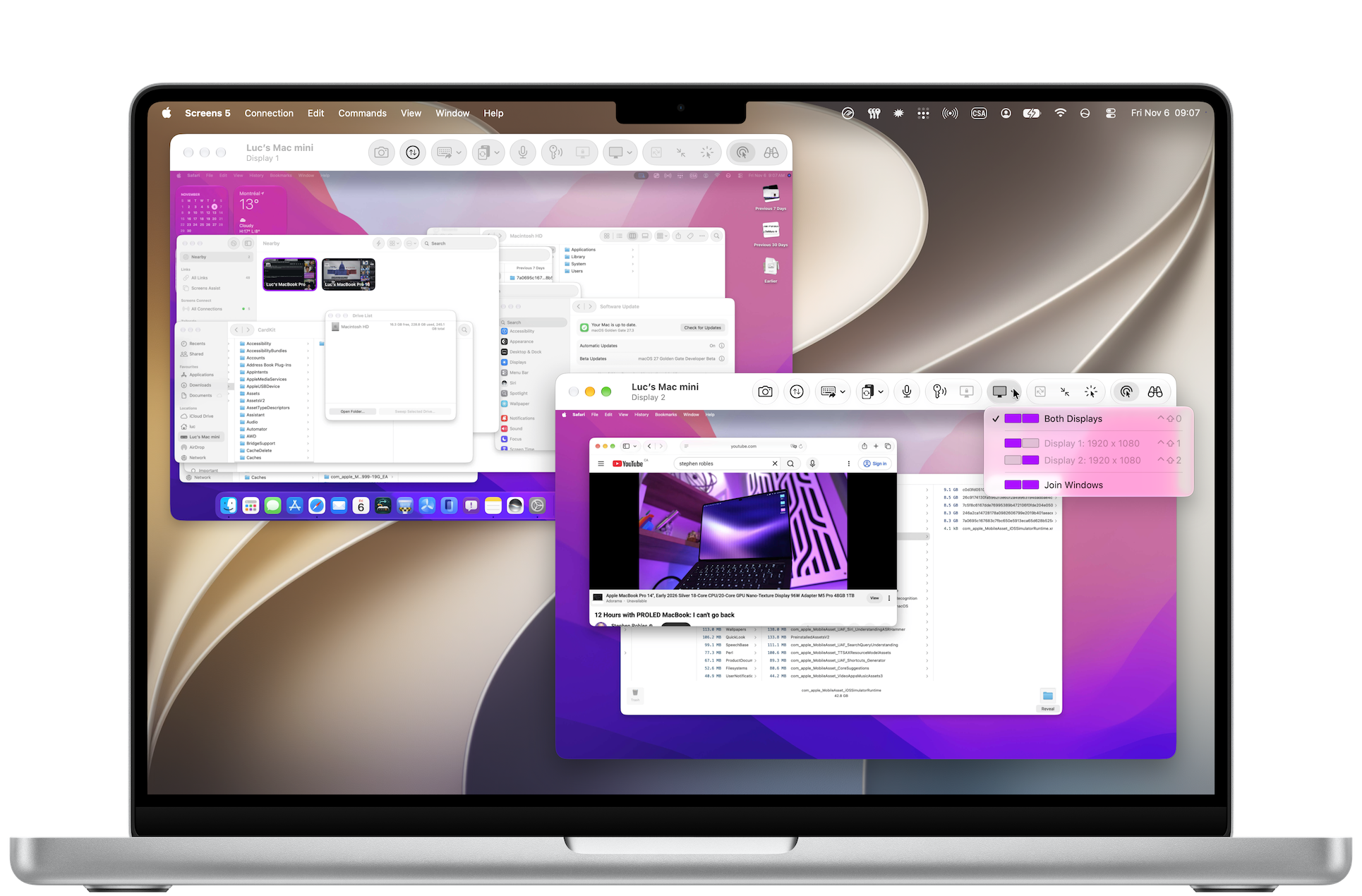
On Mac and Apple Vision Pro, you can even create one or two virtual displays, each using your chosen resolution.
Want sharper text and larger interface elements? Keep Retina Resolution enabled.
Prefer more room to work? Turn it off to double the desktop's width and height, giving you up to four times the usable workspace!
This works with both Fixed and Dynamic desktop sizing, so you can enjoy a desktop that perfectly fits your screen without sacrificing valuable workspace.
Smoother Video. And Yes, Audio!
This is another big one.
Screens can now use HEVC video streaming to deliver smoother graphics and improved image quality.
Scrolling, moving windows, animations, and video playback all benefit from a more fluid experience.
And perhaps more importantly for many of you, Screens can finally transmit audio from your remote Mac!
Whether you're watching a video, listening to something, or working with an application that produces sound, you can now hear it directly on your iPhone, iPad, Mac, or Apple Vision Pro.
It's been one of our most requested features, and we're thrilled to finally bring it to Screens.
Here's a screen recording captured on an iPhone Duo using Screens 5.10, while watching Stephen Robles' review of the new MacBook Pro on a remote Mac (sound up!):
Notice how perfectly the remote desktop fits the Duo's inner display, with smooth video playback and audio. Rotate your device, and Screens automatically resizes the remote desktop to match the new orientation.
A Word About Connection Quality
Smooth video and audio streaming work best over fast, stable connections with low latency.
But we know that's not always possible, especially when connecting over the Internet or cellular networks.
That's why Screens automatically adapts when network conditions aren't ideal, falling back to standard screen updates while preserving High Performance features like dynamic resizing, virtual displays, and display privacy.
You can also disable Smooth Video & Audio in your connection's Display settings if you prefer.
The goal is simple: keep your remote desktop usable, even when network conditions aren't ideal.
Keep Your Remote Mac Private
High Performance also introduces a different approach to display privacy.
When connecting as the logged-in user, Screens creates a private virtual desktop and automatically blanks the remote Mac's physical displays.
Anyone standing near your Mac won't be able to see what you're doing remotely.
And unlike traditional Curtain Mode, there's no lock screen or message displayed on the remote Mac.
It's a particularly welcome improvement when accessing a Mac in a shared workspace or office.
High Performance connections also include built-in encryption, so an SSH tunnel isn't required to protect your session.
Multiple Displays, Multiple Windows
We've also introduced something particularly useful for Mac and Apple Vision Pro users.
You can now choose how to work with multiple remote displays.
View a particular display, show them all together in a single window, or open each display in its own window.
On Mac, this makes it easier to organize remote desktops alongside your other applications.
On Apple Vision Pro, you can arrange individual remote displays freely in your space.
And when using Standard Screen Sharing, Screens remembers your separate display windows and restores them when you reconnect.
Better Performance for Everyone
High Performance isn't the only thing we've been working on.
Screens 5.10 introduces a new Metal-based renderer designed to improve graphics performance, smoothness, and responsiveness.
And the best part? These improvements aren't limited to High Performance.
Standard Screen Sharing benefits too, whether you're connecting to a Mac, Windows PC, Linux computer, or Raspberry Pi.
We've also improved clipboard handling, refined display management, and made numerous fixes and optimizations throughout the app.
On iPhone and iPad, we've refreshed the connection carousel with Liquid Glass and improved the floating toolbar.
On Apple Vision Pro, we've refined gestures, cursor interactions, and window management.
Lots of little improvements that add up to a better experience.
What Do You Need?
Getting started couldn't be easier.
All you need is a remote Mac with Apple silicon (M1 or later) running macOS 14 Sonoma or later, with Screen Sharing enabled.
That's it! No additional software to install or configure.
If you haven't enabled Screen Sharing yet, follow our quick setup guide.
There are no additional hardware requirements for your iPhone, iPad, or Apple Vision Pro.
For a closer look at everything High Performance has to offer, check out our detailed guide.
Available Now!
Screens 5.10 is available right now on the App Store!
This has been one of our most ambitious updates yet, and we're incredibly happy to finally share it with you.
We can't wait for you to experience High Performance Screen Sharing.
As always, we'd love to hear what you think. Let us know how it's working for you, what you love, and what we could make even better.
Enjoy Screens 5.10!