
Starting with Screens 5.8, you now have full control over the interactive toolbar on iPhone, iPad, and Vision Pro. This update makes it easier than ever to tailor the toolbar to your workflow, putting the controls you use most exactly where you want them.
Whether you prefer a minimal setup or quick access to advanced actions, toolbar customization lets Screens adapt to the way you work.
Getting Started
Customizing the toolbar only takes a few steps:
- Open Screens
- Go to App Settings
- Navigate to Controls > Toolbars
- Select the device for which you want to customize the toolbar
Screens lets you configure a different toolbar for each device type (iPhone, iPad, or Vision Pro). All your toolbar configurations are automatically synced via iCloud, so your preferences follow you across devices.
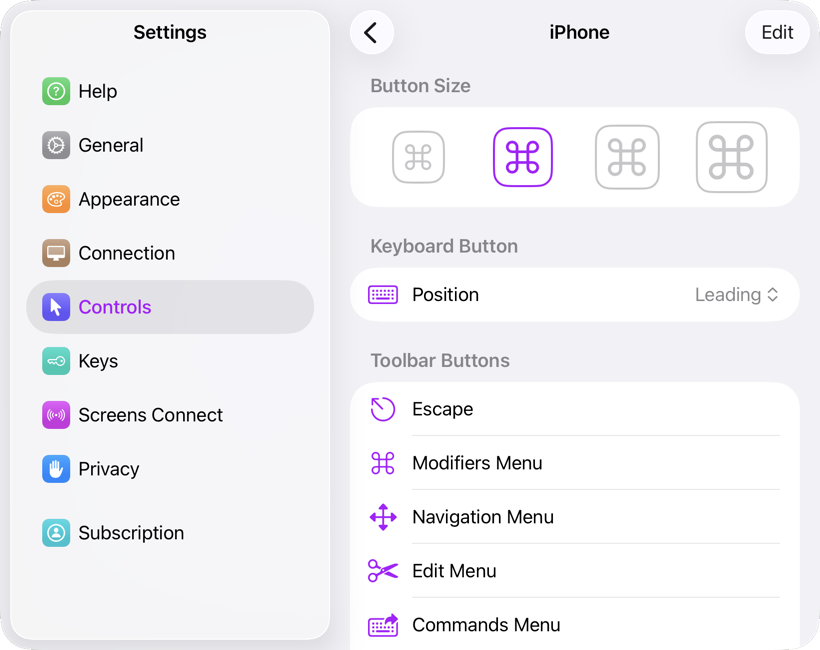
Available Customization Options
Once you’re in the toolbar settings, you can fine-tune several aspects of its appearance and behavior:
- Button Size – choose the size that best fits your screen and usage style
- Keyboard Button Position – place it on the leading or trailing edge of the toolbar
- Visible Toolbar Buttons – decide exactly which actions are shown
These options give you precise control over both layout and usability.
Adding Buttons
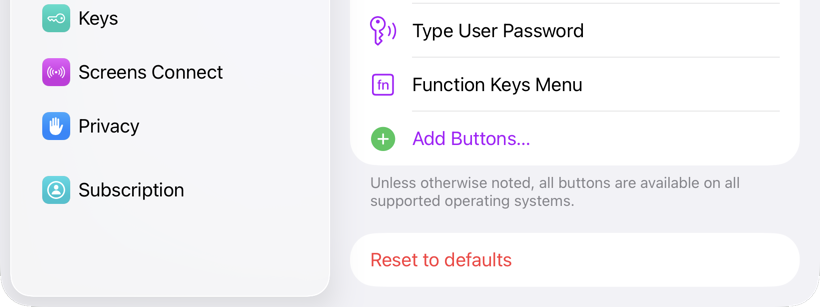
To add new actions to your toolbar, scroll down and tap Add Buttons. You’ll see a complete list of available toolbar buttons, including spacers, which help you group actions and improve spacing.
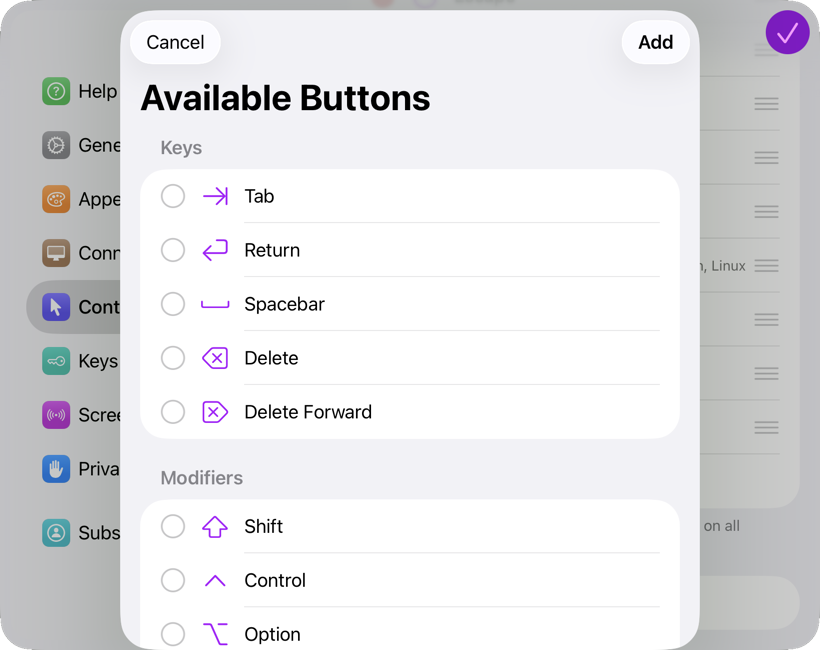
Select the buttons you want, then tap Add to insert them into the toolbar.
Reordering or Removing Buttons
If you want to refine your setup further, tap Edit. From there, you can:
- Reorder buttons to match your workflow
- Remove buttons you no longer need
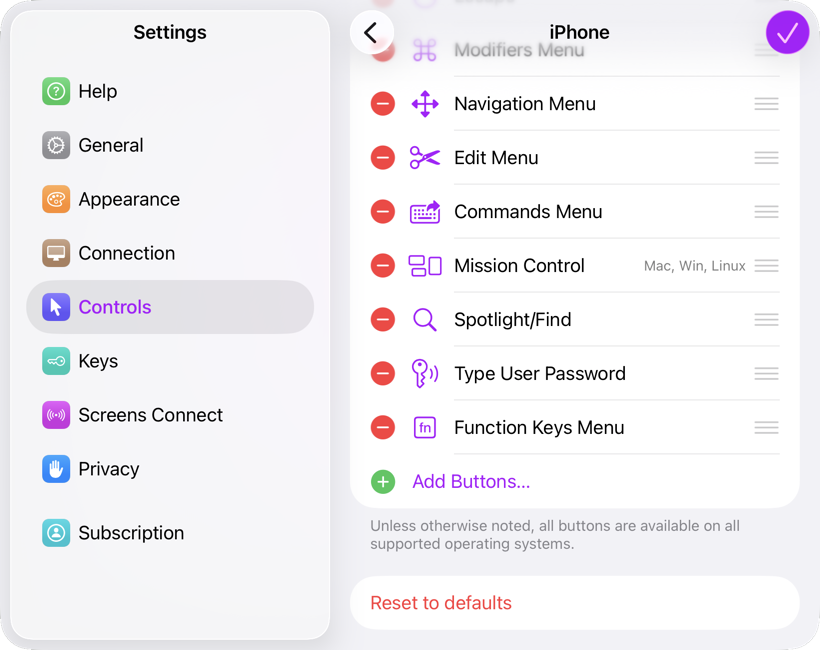
Make Screens Yours
Toolbar customization in Screens 5.8 is all about flexibility. By tailoring the toolbar per device, you can keep things compact on iPhone, more expansive on iPad, and perfectly balanced in Vision Pro—without compromise.
Download Screens 5.8 today and try experimenting with different layouts to find the setup that feels just right for you.