
Starting with Screens 5.8.8, remote access is built directly into Screens on Macs running macOS 14 or later.
This means you can now make your Mac reachable from anywhere without installing Screens Connect separately. Everything is configured directly from within Screens, making setup faster and easier than ever.
If you're using a Mac running macOS 13 or earlier, a Windows PC, or simply prefer the standalone version, Screens Connect remains available and fully supported.
Why We Made This Change
For years, Screens Connect has been the easiest way to access your computers remotely through Screens. While it worked well, it also meant installing and maintaining a separate application.
By integrating remote access directly into Screens, setup becomes simpler and managing your Mac is more straightforward. New users can get started in just a few steps, while existing users can continue using the standalone version if they prefer.
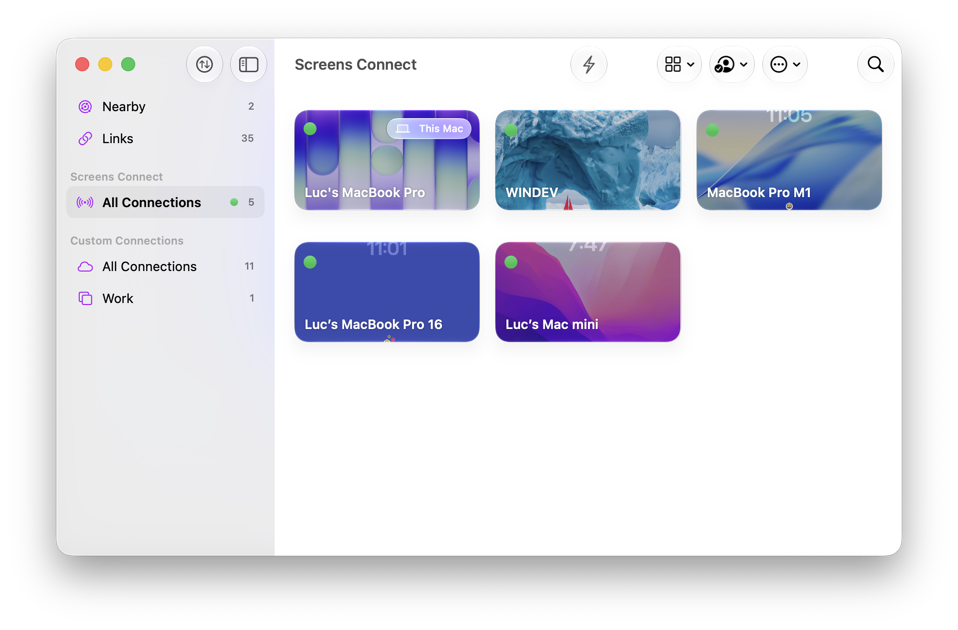
Setting Up Remote Access
1. Sign In to Your Screens Connect Account
Open the Screens Connect section in Screens and sign in with your existing Screens Connect account, or create a new one.
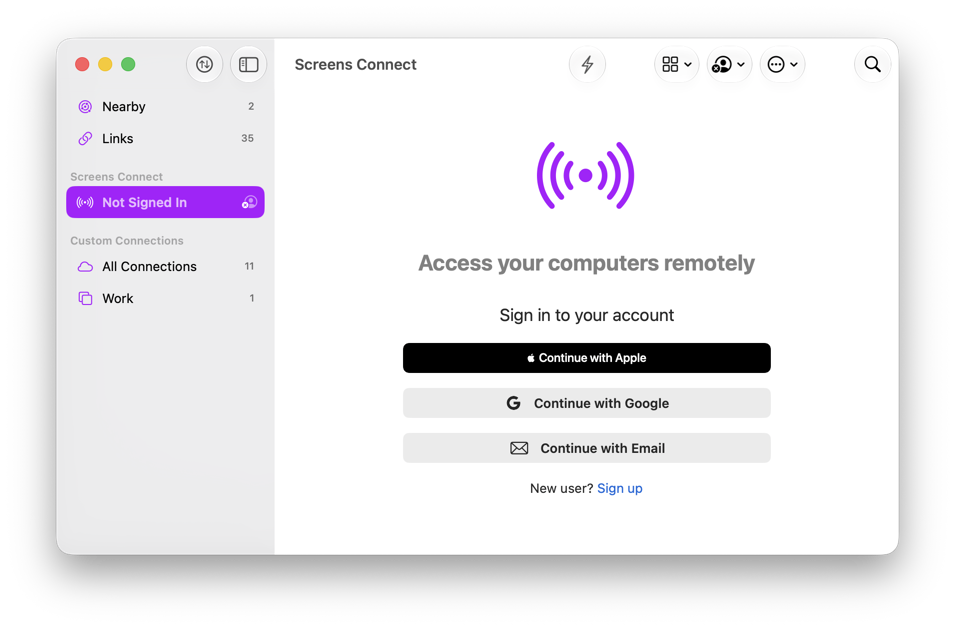
2. Open Screens Connect Settings
Choose Screens > Settings > Screens Connect.
You may also see a Set Up Remote Access button in the Library, which takes you directly to the configuration screen.
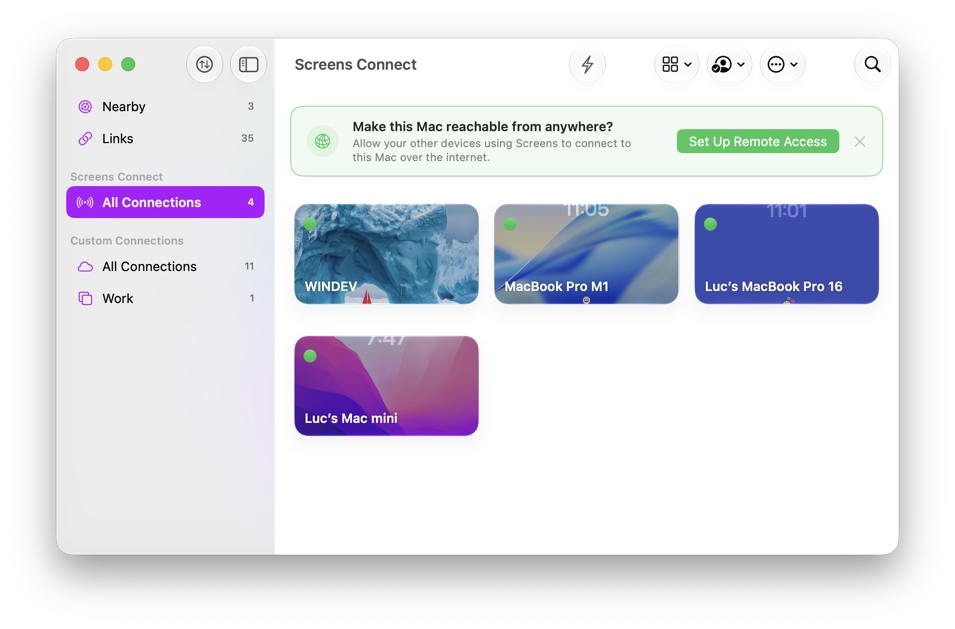
3. Enable Remote Access
Turn on Make this Mac available remotely.
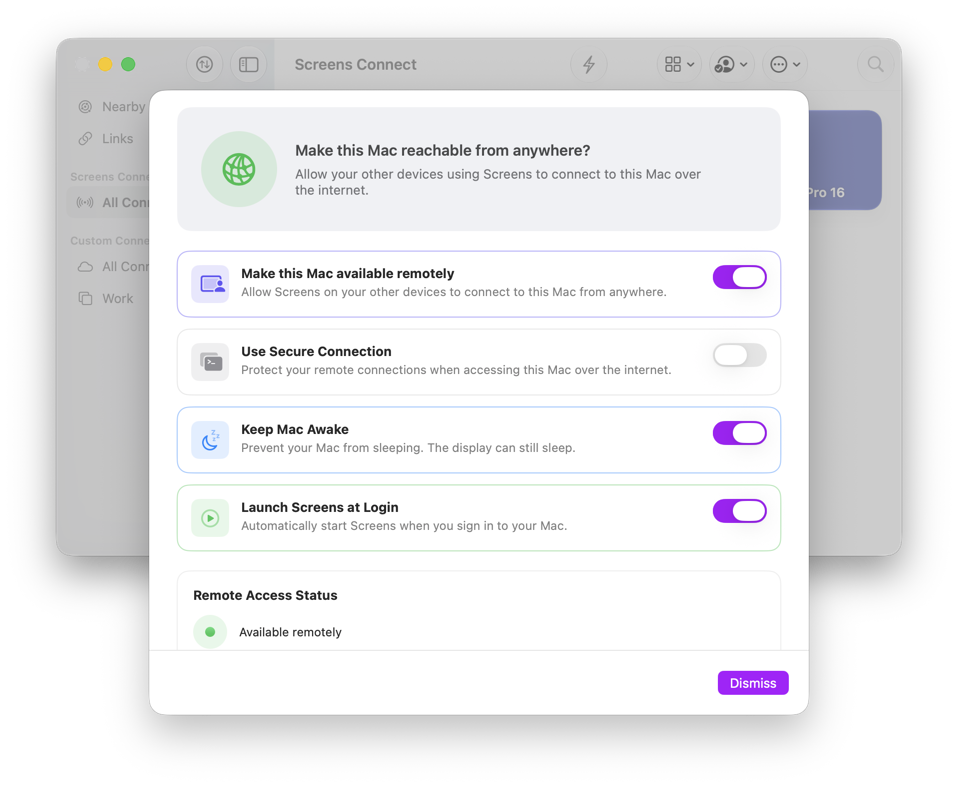
4. Enable Required macOS Services
If prompted, enable Screen Sharing and Remote Login in System Settings.
Screen Sharing allows Screens to view and control your Mac remotely.
Use Secure Connection requires Remote Login to be enabled and encrypts connections to your Mac for additional security.
If you need help configuring these services, detailed instructions are available here.
5. Confirm Your Mac Is Available
Once setup is complete, your Mac will appear in the list of computers associated with your Screens Connect account.
6. Connect From Anywhere
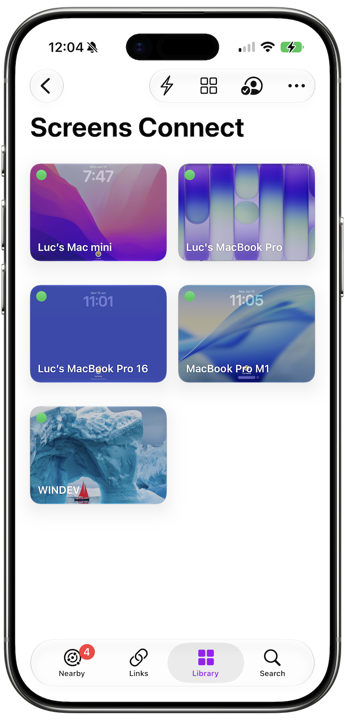
Your Mac is now ready to be accessed from your other devices running Screens.
Simply sign in with the same Screens Connect account and your Mac will automatically appear in your Library.
What About the Standalone Version?
The standalone version of Screens Connect remains available and may still be required in some situations:
- Your Mac is running macOS 13 or earlier.
- You want to make a Windows PC reachable remotely.
- You prefer using the standalone application.
For setup instructions, visit the Screens Connect section.
Getting Started
If you're running macOS 14 or later, simply update to Screens 5.8.8 or later and open the Screens Connect section to begin configuring remote access.